

In this guide, I’m sharing the Grammarly Go tips I found most useful for emails, rewrites, prompts, and everyday writing.
If you already read my full Grammarly Go review, you know I like it for everyday writing but not for long-form content. This post is the practical follow-up: the exact prompts and habits that made it worth keeping open every day.
Why Prompt Wording Actually Matters
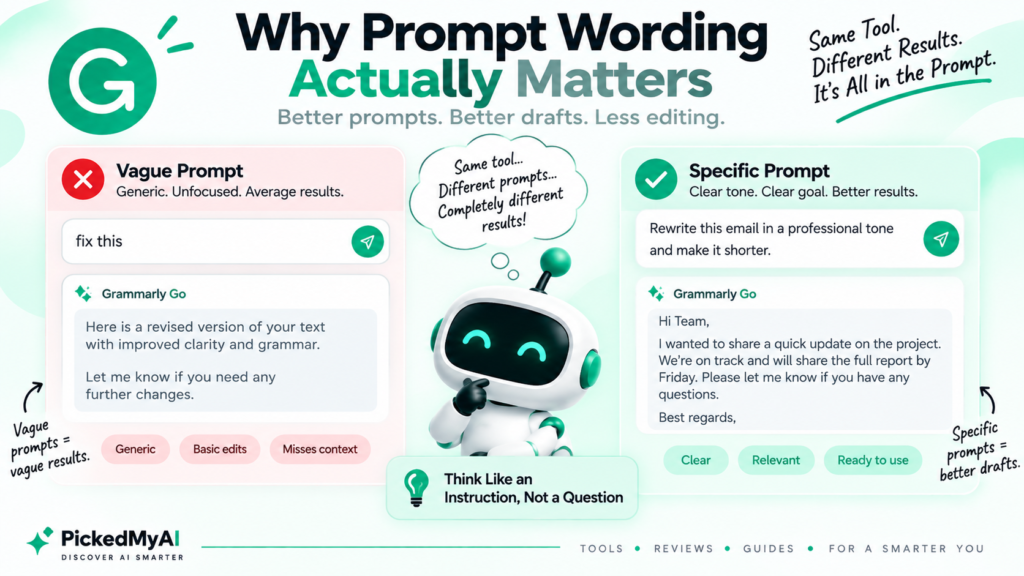
The single biggest thing that changed my results was how I phrased my prompts. Vague requests like “fix this” gave me generic output almost every time.
Specific requests with a clear tone and a clear goal gave me far better drafts on the first try. Grammarly’s own prompt guide confirms this too, but I only really understood it after a few weeks of testing different phrasing myself.
Once I started treating prompts like short instructions rather than casual questions, my editing time dropped noticeably.
My Best Grammarly Go Tips for Everyday Writing
These are the Grammarly Go tips and habits. I now use almost every day when writing:
- Add a tone word in brackets, like [professional] or [friendly], instead of describing tone in a full sentence
- Highlight the exact sentence you want rewritten rather than the whole paragraph
- Use “Make this shorter” instead of asking it to summarize when you want a tighter version of your own writing
- Click suggested prompts first before typing your own, since they are tuned to your context
- Use the Reply quickly button on emails instead of typing a fresh prompt from scratch
- Ask for two or three variations at once and pick the best parts from each
Out of all of these, highlighting a specific sentence instead of a whole paragraph made the most significant difference in output quality for me.
Grammarly Go Prompt Formulas I Use Weekly
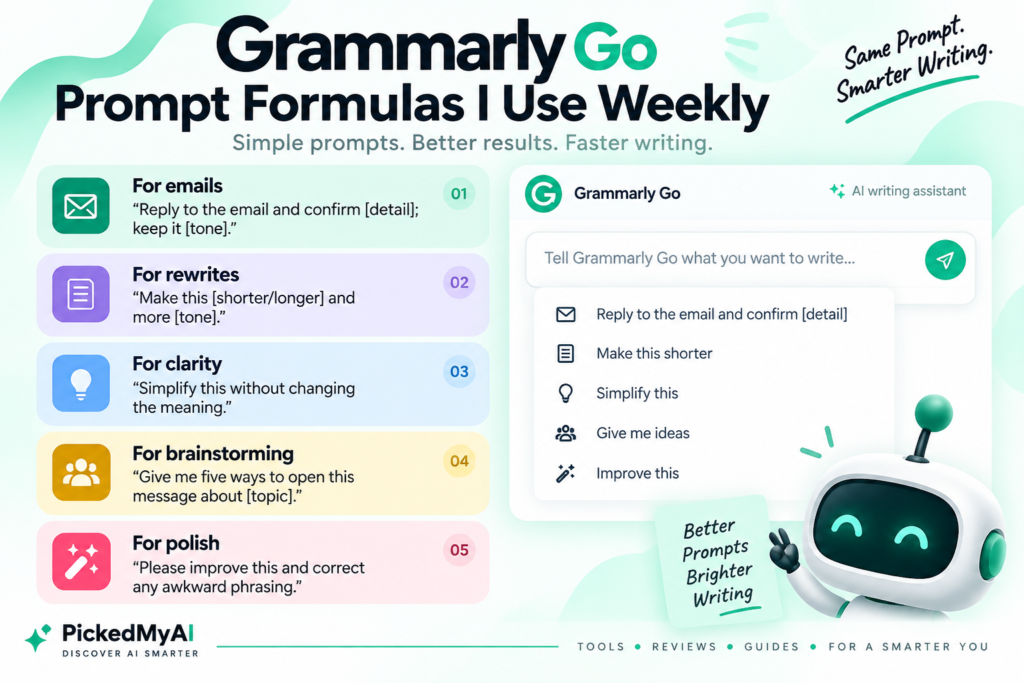
Here are the exact Grammarly Go prompt formulas. I keep coming back to these prompt structures based on the real tasks I handle each week:
- For emails: “Reply to the email and confirm [detail]; keep it [tone].”
- For rewrites: “Make this [shorter/longer] and more [tone].”
- For clarity: “Simplify this without changing the meaning.”
- For brainstorming: “Give me five ways to open this message about [topic]”
- For Polish: “Please improve this and correct any awkward phrasing.”
I keep this list saved in a notes app so I am not reinventing prompts every time I open a new draft.
Grammarly Go Tips for Browser and App Workflows
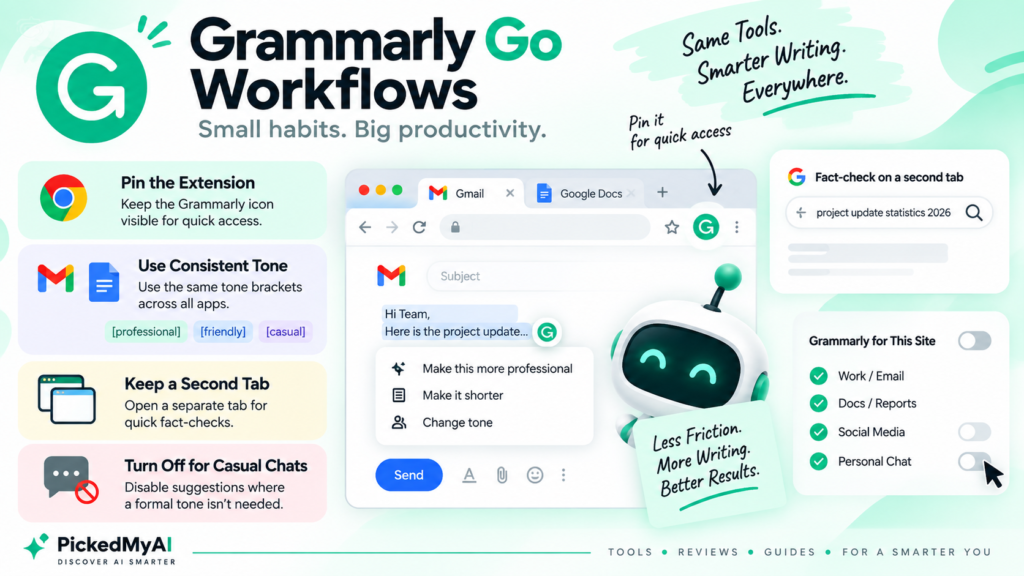
Beyond prompt wording, a few small workflow habits saved me more time than any single prompt trick. These are the shortcuts I now use without thinking.
- Pin the Grammarly extension icon so it never gets buried in a crowded browser toolbar
- Use the same tone brackets across every app, so Gmail and Google Docs feel consistent
- Keep a second browser tab open only for quick fact-checks after generating a draft
- Turn off suggestions for casual channels like personal chat, where a formal tone is not needed
None of these are complicated, but together they reduce the small friction that kept me from using it in the first place.
Tips for Using the Personalize Feature
One of the Grammarly Go tips that took me the longest to figure out was how to get the most from Personalize.
- Use it on real writing tasks, not test prompts, since it learns from genuine patterns
- Correct or rewrite its output manually when it misses your tone, rather than accepting it as-is
- Give it at least two to three weeks of regular use before judging whether it feels personalized
- Reset expectations for shared or team accounts, since personalization works best tied to one person’s writing habits
By week three, I noticed it stopped suggesting overly formal phrasing that did not match how I actually write.
Grammarly Go Tips I Wish I Knew Early On
These Grammarly Go tips would have saved me a lot of time and effort when I first started using the tool.
- I asked it to write full paragraphs from scratch with almost no context, which gave me generic filler text
- I trusted the first draft without fact-checking names, dates, and numbers
- I tried using it for a full blog draft, which is not what it is built for
- I ignored the suggested prompts, which were often better than what I typed myself
Fact-checking became a permanent habit after it once confidently inserted a wrong meeting time into a reply draft.
How I Manage My Monthly Prompt Limit
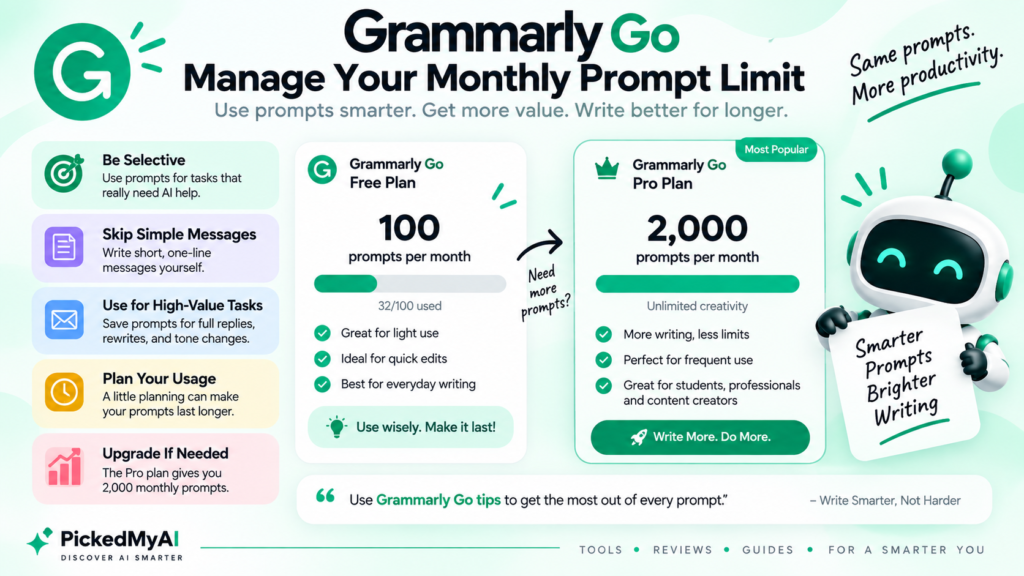
One of the most practical Grammarly Go tips is learning when to use a prompt and when to simply write the sentence yourself. The free plan gives 100 prompts a month, and I burned through that faster than expected once I started using it for every email reply.
I now save prompts for tasks that actually need drafting help, like a full reply or a tone rewrite, and skip it for one-line messages I can type myself in seconds. That single habit made my free-plan prompts last close to three weeks longer.
Once I moved to the Pro plan, covered in detail in my Grammarly Go pricing breakdown, the 2,000 monthly prompts stopped being a concern entirely.
Where It Still Falls Short
These Grammarly Go tips can improve the quality of your everyday writing, but they cannot completely overcome the tool’s limitations for long-form content.
For that kind of writing, I use tools built specifically for it. My Anyword vs Jasper vs Rytr comparison covers three options worth checking if your main need is long-form or marketing copy rather than everyday writing help.
It is worth noting that Grammarly remains one of the more widely used AI writing tools among marketers, alongside ChatGPT and Google Gemini, according to recent research on AI adoption in the workplace. That usage lines up with what I experienced: strong for daily writing, limited for full content production.
Frequently Asked Questions
What is the best Grammarly Go tip for beginners? One of the easiest Grammarly Go tips for beginners is to add a tone word to every prompt, like [professional] or [casual]. This one change improved my results more than any other adjustment.
Can Grammarly Go tips help with running out of monthly prompts? Yes. Saving prompts for tasks that genuinely need drafting help, rather than every short message, made my free-plan prompts last significantly longer.
Are Grammarly Go prompts different from ChatGPT prompts? They work similarly, but Grammarly Go prompts tend to work best when kept short and paired with a highlighted section of text, rather than open-ended requests.
Do these tips work on the free plan? Yes. Every tip in this guide worked for me on the free 100-prompt plan before I upgraded. You can read the full pricing breakdown here.
Is Grammarly Go good enough for blog writing with the right prompts? Even with better prompts, I would not recommend it for full blog articles. For that, check our Marketing category for tools built specifically for long-form content.
How long until Grammarly Go tips like Personalize actually work? In my experience, it took about two to three weeks of regular, real-world use before the Personalize feature started matching my actual writing style.
Do Grammarly Go tips change between the browser extension and mobile app? Mostly no, but I found prompt highlighting to be more reliable on desktop. The mobile app worked for quick replies but felt less consistent for longer rewrites.
Want more on this tool? Read my full Grammarly Go review, browse the Marketing category, or compare AI writing tools side-by-side to see how it stacks up against alternatives like Rytr and Jasper.
Discussion (0)
No comments yet. Start the discussion below!
Leave a Comment